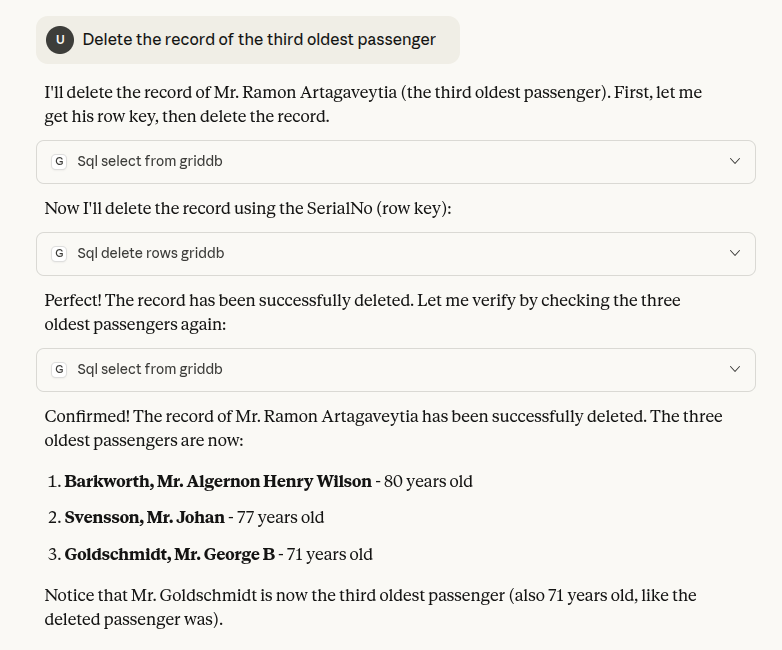
Modern AI systems increasingly rely on external tools, databases, and services, which makes interoperability a core requirement for building flexible applications. The Model Context Protocol (MCP) addresses this need by providing a standard way for applications to expose tools, resources, and prompts through a unified interface. When paired with GridDB’s cloud API, MCP allows developers to create reliable, reusable, and vendor-agnostic integrations for data operations.
In this article, you will learn how to build an MCP server for GridDB using the FastMCP library. We will walk through the complete workflow: project setup, environment configuration, defining tools for CRUD operations, and connecting the MCP server to an MCP client. By the end, you will have a fully functional GridDB MCP server that exposes database operations through a consistent, portable interface.
Note: The code for this article is available in this GitHub repository.
Prerequisites:
The following are the prerequisites to run the code in this article.
- A GridDB cloud account. Refer to this quick start guide to find more information.
- An MCP client. You can create one or use Claude Desktop (the free version is enough for testing), as explained in this article.
What is MCP
The Model Context Protocol (MCP) is an open standard introduced by Anthropic to make it easier for applications and AI models to work with external tools and data. Instead of building custom integrations for every service, MCP provides a single, consistent way to expose actions, resources, and prompts.
With MCP, any server can publish capabilities, and any compatible client can use them without worrying about the underlying implementation. This creates a clean, reliable bridge between applications and the systems they need to interact with databases, APIs, files, or anything else.
Next, you will see how to create an MCP server that allows you to insert a CSV file into the GridDB database and perform create, read, update, and delete operations on the dataset.
Project & Environment Setup
You can create an MCP server from scratch. However, implementing various MCP standard protocols yourself could be cumbersome and error-prone, and can take a lot of time to bug.
With the growing popularity of MCP, various third-party modules and libraries have been developed to abstract its complexities, making it easier to set up your MCP server. FastMCP is one such MCP development library, which you will use in this article.
FastMCP recommends using the uv package manager to install and manage its dependencies. Run the following script in your command terminal to install uv if you haven’t already.
pip install uv
Next, create a folder that will contain your MCP server code. In this example, we name the folder GRIDDB_MCP_SERVER. Open the folder inside a code editor, e.g, VS Code and run the following command on the terminal:
uv init .
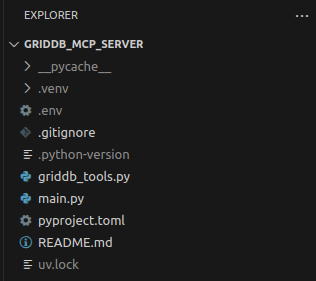
The above command will create a default project containing files such as README.md, main.py, pyproject.toml, etc.
Install the following three libraries that we will need to run the code in this article:
uv add fastmcp python-dotenv pandas
Next, create a .env file in your project directory and set the GridDB username, password, and cluster URL as the following environment variables. The .env file is only needed for debugging. Later, when you use an MCP client to connect with your MCP servers, the client will pass its own environment variable, allowing multiple clients to connect with your MCP server.
username=GridDB_USERNAME
password=GridDB_PASSWORD
base_url=GridDB_CLUSTER_URL
Finally, create a griddb_tools.py file to define tools for our MCP server.
Your final project structure should look like this:
Creating Tools
MCP servers have three main components:
- Tools: Actions or functions the MCP server can perform when requested by the client.
- Resources: Data or items the MCP server makes available for the client to access or read.
- Resources: Prewritten text templates that the MCP server provides for generating consistent responses.
In most cases, tools are enough to create a functioning MCP server.
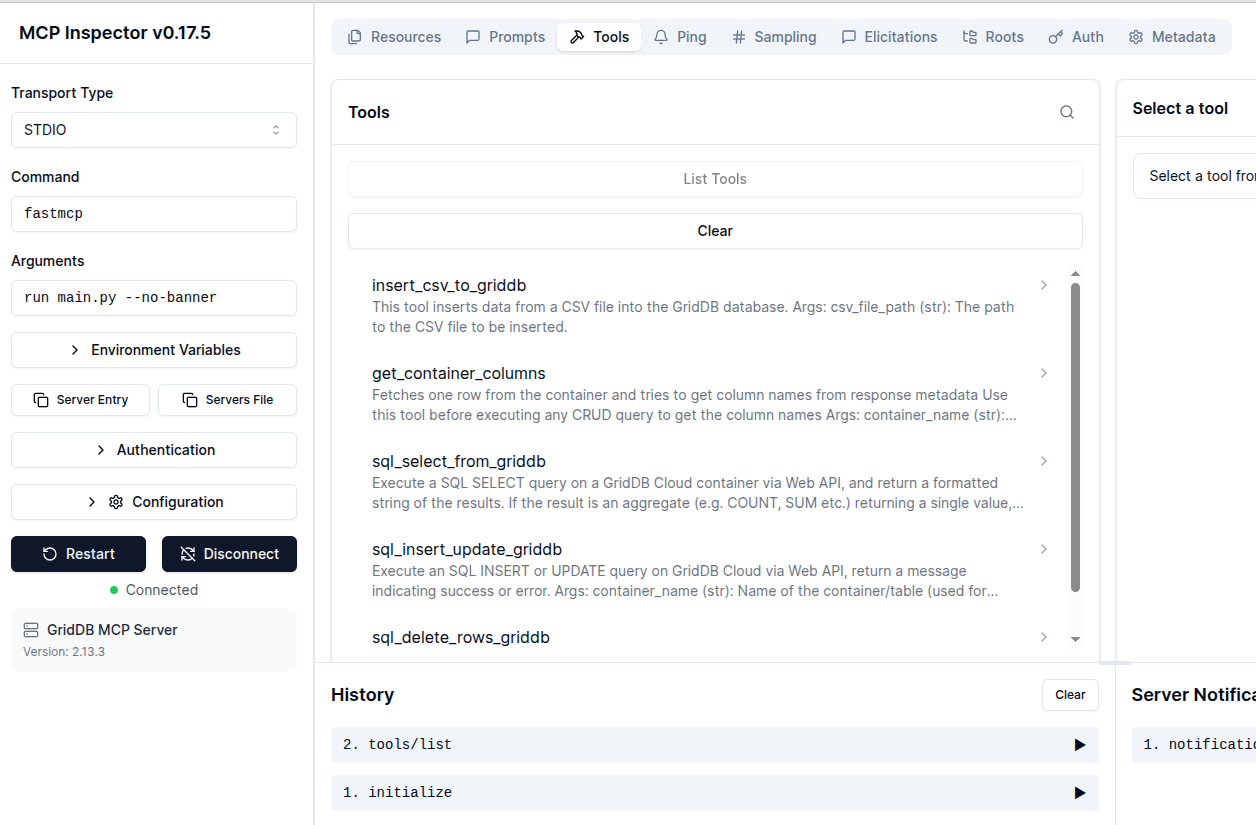
For the MCP server we are creating, we will define five tools. These tools are implemented as async Python functions in FastMCP.
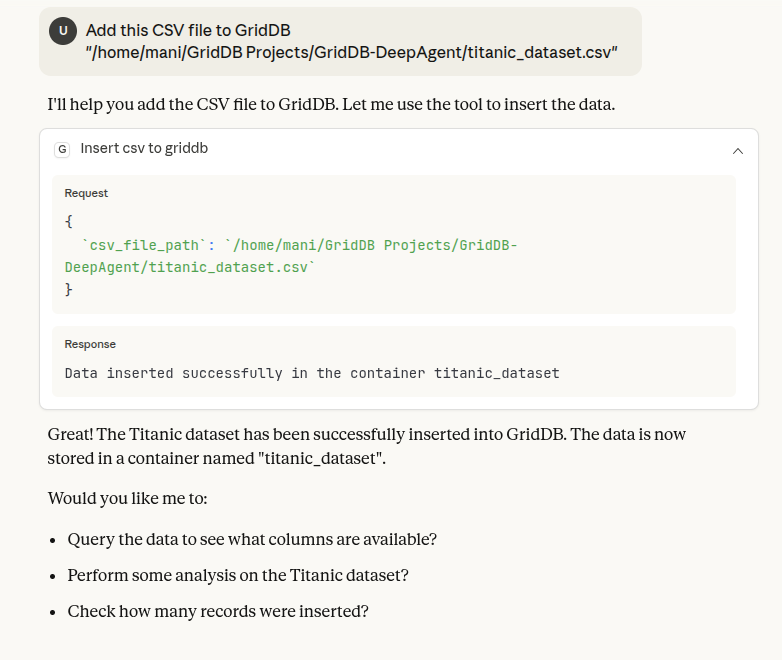
- insert_csv_to_griddb: which inserts data from a CSV file into a GridDB container.
- get_container_columns: which returns the names of all the columns in a GridDB container.
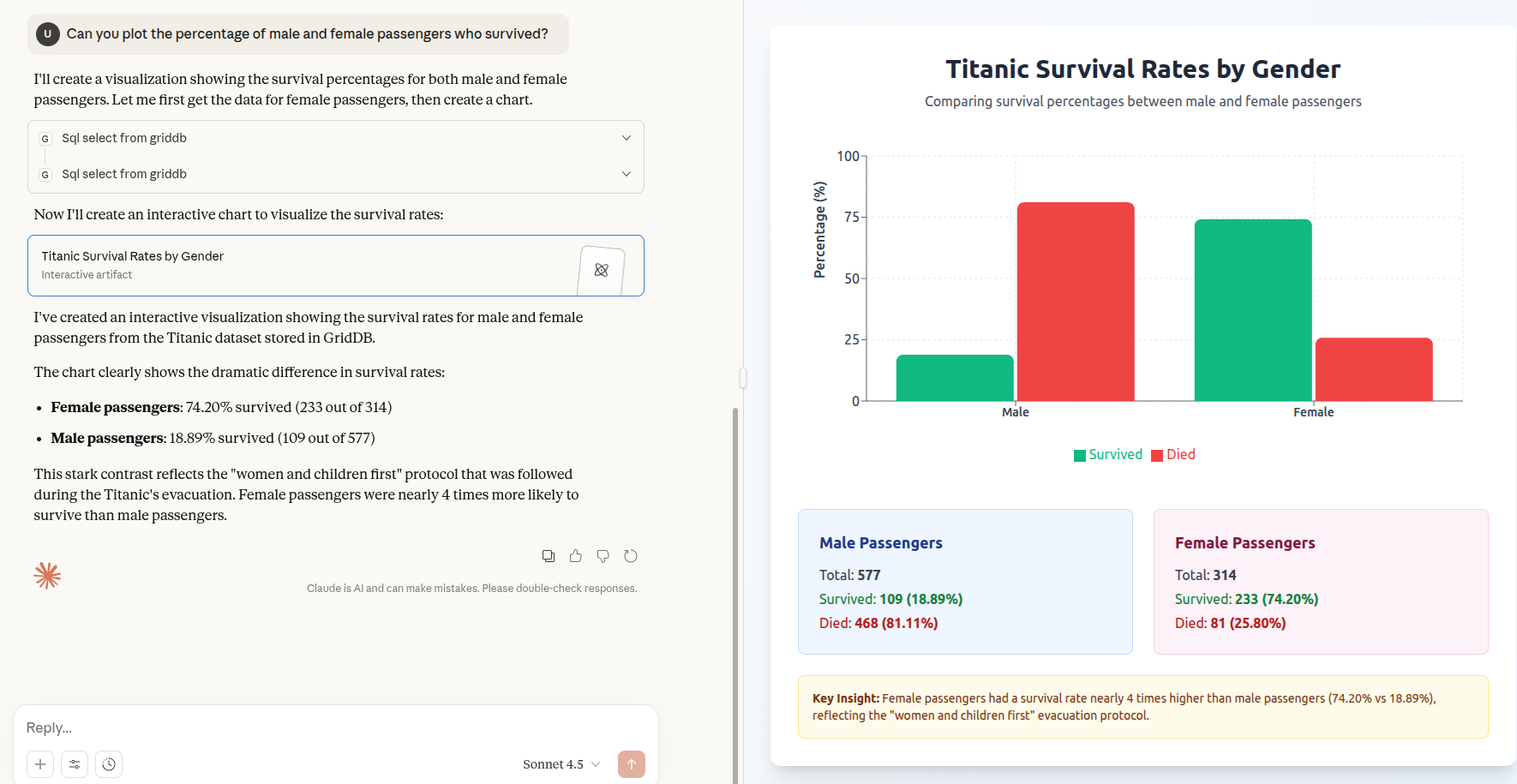
- sql_select_from_griddb: executes select (read) queries on a GridDB database.
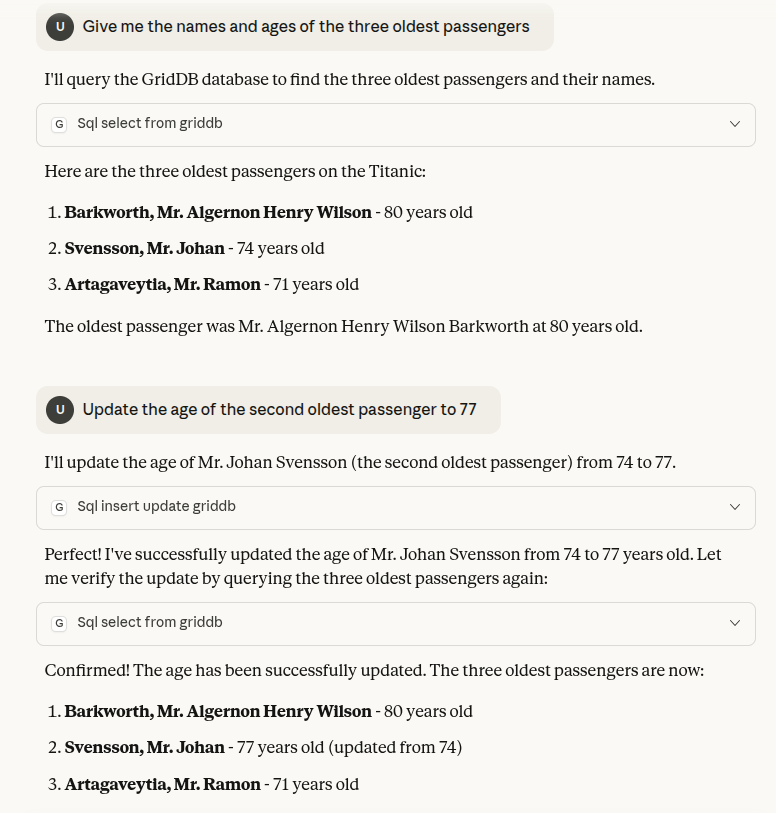
- sql_insert_update_griddb: executes the insert and update (create and update) queries on GridDB.
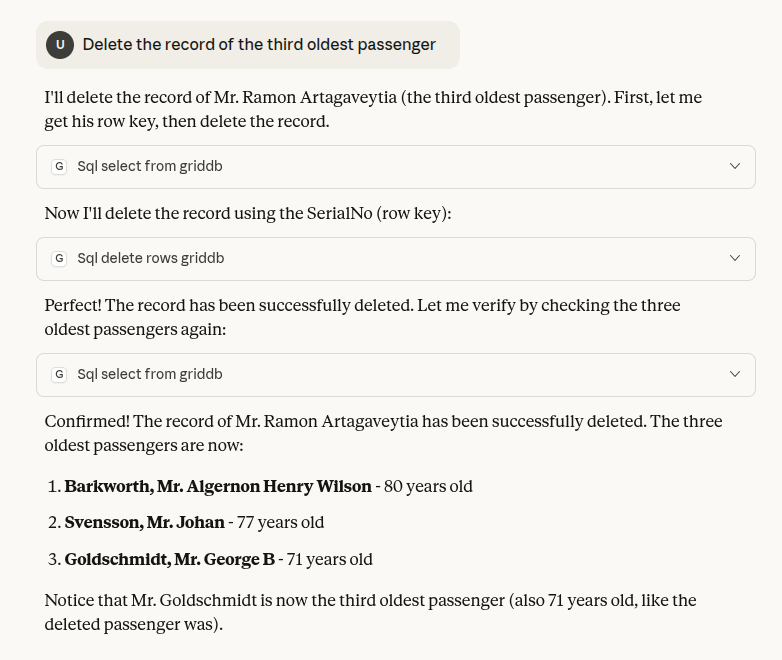
- sql_delete_rows_griddb: which deletes a single or multiple rows from a GridDB database.
Note that these are the same tools that we defined in our previous article. However, in that article, we defined them inside a LangGraph DeepAgent. Anyone accessing those tools would have to write their own custom integrations. If a tool implementation changes on the DeepAgent side, the custom integration would need to be updated.
In this article, we will convert these tools into MCP server tools, shifting the responsibility for maintaining, updating, and modifying them to the vendor. The clients will always have the same uniform interface to access these tools.
We will add our tools to the griddb_tools.py file. Before adding any tool, add this code on top of the file:
import os
import base64
import json
from pathlib import Path

import pandas as pd
import requests
from dotenv import load_dotenv

load_dotenv()

username = os.environ.get("username")
password = os.environ.get("password")
base_url = os.environ.get("base_url")

if not all([username, password, base_url]):
    raise RuntimeError("Missing env vars: username/password/base_url")

credentials = f"{username}:{password}"
encoded_credentials = base64.b64encode(credentials.encode()).decode()
headers = {
    "Content-Type": "application/json",
    "Authorization": f"Basic {encoded_credentials}",
    "User-Agent": "PostmanRuntime/7.29.0",
}
Insert CSV to GridDB Tool
This tool accepts a CSV file path and creates a container with the same name as the CSV file. It then inserts the records from the CSV file into the GridDB container.
async def insert_csv_to_griddb(csv_file_path: str) -> str:

    """
    This tool inserts data from a CSV file into the GridDB database.

    Args:
        csv_file_path (str): The path to the CSV file to be inserted.
    """

    try:

        if not os.path.isfile(csv_file_path):
            return f"Error: The file '{csv_file_path}' does not exist."

        dataset = pd.read_csv(csv_file_path)

        container_name = Path(csv_file_path).stem

        ## =============================
        ## Creating Container for GridDB
        ## =============================

        dataset.insert(0, "SerialNo", dataset.index + 1)
        dataset.columns.name = None
        # Mapping pandas dtypes to GridDB types
        type_mapping = {
            "int64":          "LONG",
            "float64":        "DOUBLE",
            "bool":           "BOOL",
            'datetime64': "TIMESTAMP",
            "object":         "STRING",
            "category":       "STRING",
        }

        # Generate the columns part of the payload dynamically
        columns = []
        for col, dtype in dataset.dtypes.items():
            griddb_type = type_mapping.get(str(dtype), "STRING")  # Default to STRING if unknown
            columns.append({
                "name": col,
                "type": griddb_type
            })

        url = f"{base_url}/containers"
        # Create the payload for the POST request
        payload = json.dumps({
            "container_name": container_name,
            "container_type": "COLLECTION",
            "rowkey": True,  # Assuming the first column as rowkey
            "columns": columns
        })

        # Make the POST request to create the container
        response = requests.post(url, headers=headers, data=payload)

        if response.status_code != 201:
            return f"Error creating container: {response.text}"

        ## =============================
        ## Inserting data in the container
        ## =============================


        url = f"{base_url}/containers/{container_name}/rows"

        def format_row(row):
            formatted = []
            for item in row:
                if pd.isna(item):
                    formatted.append(None)  # Convert NaN to None
                elif isinstance(item, bool):
                    formatted.append(str(item).lower())  # Convert True/False to true/false
                elif isinstance(item, (int, float)):
                    formatted.append(item)  # Keep integers and floats as they are
                else:
                    formatted.append(str(item))  # Convert other types to string
            return formatted

        # Prepare rows with correct formatting
        rows = [format_row(row) for row in dataset.values.tolist()]

        # Create payload as a JSON string
        payload = json.dumps(rows)

        # Make the PUT request to add the rows to the container
        response = requests.put(url, headers=headers, data=payload)

        if response.status_code != 200:
            return f"Error inserting data: {response.text}"


        return f"Data inserted successfully in the container {container_name}"


    except Exception as e:
        return f"Error: {str(e)}"
Get Container Columns Tools
This tool retrieve column names from our GridDB container. Column names will provide MCP server with the information to call other tools.
async def get_container_columns(container_name: str) -> list[str] | str:

    """
    Fetches one row from the container and tries to get column names from response metadata
    Use this tool before executing any CRUD query to get the column names

    Args:
        container_name (str): Name of the container/table to retrieve data
    """


    try:
        if not container_name:
            return "Error: container_name must be provided"

        url = f"{base_url}/containers/{container_name}/rows"

        payload = {
            "offset": 0,
            "limit": 1,
            "condition": "",
            "sort": ""
        }
        response = requests.post(url, headers=headers, json=payload)
        if response.status_code != 200:
            return f"Error fetching rows for container {container_name}: {response.status_code} {response.text}"

        data = response.json()

        rows = data.get("rows", None)
        if rows is None or len(rows) == 0:
            return f"No rows returned from container {container_name}"

        # Try to get “columns” metadata from response, if present
        if "columns" in data and isinstance(data["columns"], list):
            cols_meta = data["columns"]
            # cols_meta: list of dicts with at least "name"
            names = [col_meta.get("name", "") for col_meta in cols_meta]
            column_names = ", ".join(names)
            return column_names

    except Exception as e:
        return f"Error: {str(e)}"
SQL Select from GridDB Tool
This tool accepts a container_name and the SQL query as parameters and returns the corresponding information from the GridDB.
async def sql_select_from_griddb(container_name: str, sql_stmt: str) -> str:
    """
    Execute a SQL SELECT query on a GridDB Cloud container via Web API,
    and return a formatted string of the results.

    If the result is an aggregate (e.g. COUNT, SUM etc.) returning a single value,
    returns something like "Aggregate result: 42".

    Otherwise, returns record by record detail.

    Args:
        container_name (str): Name of the container/table to retrieve data
        sql_stmt (str): The full SQL SELECT statement to execute.

    Returns:
        A string with formatted results or error message.
    """


    try:
        if not container_name:
            return "Error: container_name must be provided"
        if not sql_stmt.strip():
            return "Error: SQL statement must be provided"

        url = f"{base_url}/sql"
        payload = [
            {
                "type": "sql-select",
                "stmt": sql_stmt
            }
        ]
        response = requests.post(url, headers=headers, json=payload)
        if response.status_code != 200:
            return f"Error executing SQL: {response.status_code}, {response.text}"

        resp_json = response.json()
        if not isinstance(resp_json, list) or len(resp_json) < 1:
            return f"Unexpected response format: {resp_json}"

        first = resp_json[0]
        columns_meta = first.get("columns")
        results = first.get("results")

        # Handle case of aggregate queries (when there are columns but rows are empty OR rows missing)
        # Or when results is present but format is such that we have just one value
        if columns_meta is not None and results is not None:
            # If only one column and one row, could be an aggregate
            if len(results) == 1 and len(columns_meta) == 1:
                # e.g. [{"name":"count", "type":"LONG"}] and [[42]]
                col_name = columns_meta[0].get("name", "value")
                val = results[0][0]
                return f"{col_name}: {val}"

            # Otherwise, return record by record
            output_lines = []
            for idx, row in enumerate(results, start=1):
                output_lines.append(f"=============================")
                output_lines.append(f"Record {idx}")
                for col_meta, cell in zip(columns_meta, row):
                    col_name = col_meta.get("name", "UnknownColumn")
                    cell_str = "None" if cell is None else str(cell)
                    output_lines.append(f"{col_name}: {cell_str}")
                output_lines.append("")  # blank line between records
            output = "\n".join(output_lines)
            return output


        return f"No usable result data found for query: {first}"

    except Exception as e:
        return f"Error: {e}"
SQL Insert/Update GridDB Tool
This tool inserts or updates existing data in a GridDB container. Like the sql_select_from_griddb tool, it accepts the container name and a valid SQL query as parameters.
async def sql_insert_update_griddb(container_name: str, sql_stmt: str) -> str:
    """
    Execute an SQL INSERT or UPDATE query on GridDB Cloud via Web API,
    return a message indicating success or error.

    Args:
        container_name (str): Name of the container/table (used for readability/logging).
        sql_stmt (str): The full SQL INSERT or UPDATE statement to execute.

    Returns:
        A string: either success message or error.
    """


    try:
        if not container_name:
            return "Error: container_name must be provided"
        if not sql_stmt.strip():
            return "Error: SQL statement must be provided"

        # Construct the URL for SQL update (inserts or updates)
        url = f"{base_url}/sql/update"

        payload = [
            {
                "stmt": sql_stmt
            }
        ]

        response = requests.post(url, headers=headers, json=payload)

        if response.status_code != 200:
            return f"Error executing SQL update: {response.status_code}, {response.text}"

        # The response may or may not include useful JSON; check and return appropriate message
        try:
            resp_json = response.json()
        except ValueError:
            # Not JSON; maybe empty or plaintext
            return f"SQL update executed successfully for container '{container_name}'."

        # If JSON and maybe return shows how many rows affected or similar
        # Depending on what the API returns; adapt as needed
        if isinstance(resp_json, list) and len(resp_json) > 0:
            # Some APIs give back something like [{"count": N}] or status info
            # Try to find a count or status field
            first = resp_json[0]
            if "count" in first:
                return f"Successfully updated/inserted {first['count']} rows into '{container_name}'."
            else:
                # If no 'count', just return the JSON for debugging
                return f"SQL update successful. Response: {resp_json}"
        else:
            return f"SQL update successful into container '{container_name}'."

    except Exception as e:
        return f"Error: {e}"
SQL Delete Rows from GRIDDB
This tool deletes data from a GridDB container.
async def sql_delete_rows_griddb(container_name: str, row_keys: list, convert_to_int: bool = True) -> str:
    """
    Delete one or more rows from a GridDB container via Web API.

    Args:
        container_name (str): the container to delete from.
        row_keys (list): list of rowkey values (as str or int). This can be retrieved by first calling the selectsql_select_from_griddb tool to get the rowkeys.
        convert_to_int (bool): if True, try converting keys to ints, else keep as given.

    Returns:
        A message string: success or detailed error.
    """


    try:
        if not container_name:
            return "Error: container_name must be provided"
        if not row_keys or not isinstance(row_keys, list):
            return "Error: row_keys must be a non-empty list"

        # Convert types if needed
        if convert_to_int:
            # only convert those that are numeric strings
            new_keys = []
            for k in row_keys:
                try:
                    ki = int(k)
                    new_keys.append(ki)
                except Exception:
                    # If conversion fails, keep original
                    new_keys.append(k)
            row_keys_to_use = new_keys
        else:
            row_keys_to_use = row_keys


        url = f"{base_url}/containers/{container_name}/rows"
        response = requests.delete(url, headers=headers, json=row_keys_to_use)

        # Acceptable success statuses
        if response.status_code not in (200, 204):
            return f"Error deleting rows: {response.status_code}, {response.text}"

        return f"Successfully requested delete of {len(row_keys_to_use)} row(s) from '{container_name}'."
    except Exception as e:
        return f"Error: {e}"
Creating GridDB MCP Server
Creating an MCP server with FastMCP is straightforward. Add the following code to the main.py:
from fastmcp import FastMCP
from griddb_tools import (
    insert_csv_to_griddb,
    get_container_columns,
    sql_select_from_griddb,
    sql_insert_update_griddb,
    sql_delete_rows_griddb,
)

mcp = FastMCP(name="GridDB MCP Server")

# Register imported functions as tools
mcp.tool()(insert_csv_to_griddb)
mcp.tool()(get_container_columns)
mcp.tool()(sql_select_from_griddb)
mcp.tool()(sql_insert_update_griddb)
mcp.tool()(sql_delete_rows_griddb)

if __name__ == "__main__":
    mcp.run()
The above code creates an MCP server named GridDB MCP Server and adds the tools we defined to the server using the mcp.tool() decorator.
Execute the following on your command terminal to see if your MCP server is running in debug mode:
uv run fastmcp dev main.py
A new browser tab will open. Click the Connect button from the left sidebar and then click Tools from the top menu. You will see all your tools listed there:
Connection MCP Client to MCP Server
You can create a custom MCP client to access the MCP server. However, creating such a client is beyond the scope of this article. We add an MCP client to Claude Desktop.
To do so, type the following command:
uv run fastmcp install claude-desktop main.py
Restart the Claude Desktop after running the above command. Go to Settings -> Developers, you should see GridDB MCP Server added in the list of MCP servers.
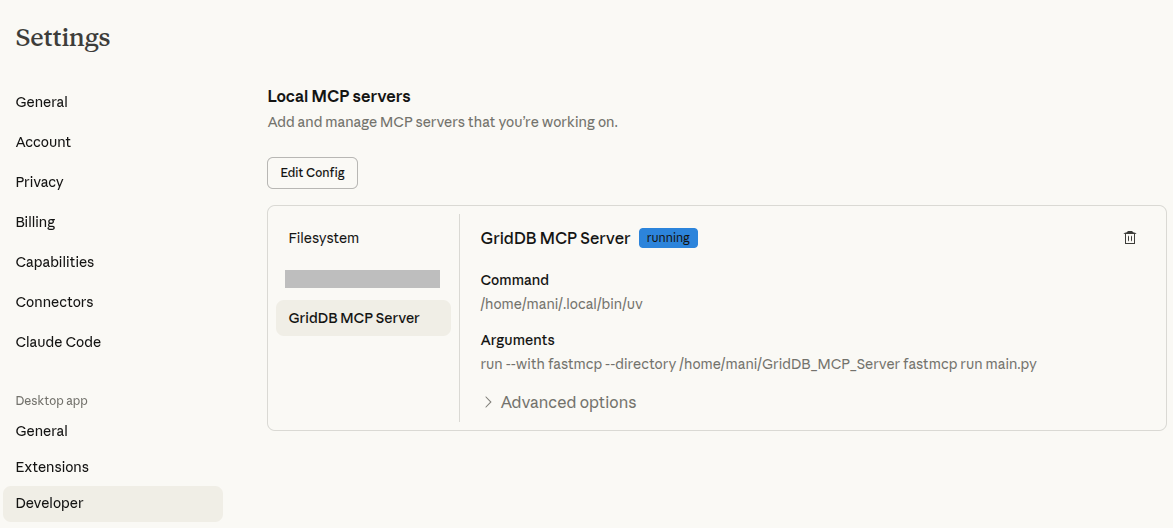
Click the Edit Config button and open the claude_desktop_json.config file. Make sure your configuration file looks like this. Add the complete path to uv installation if in the command attribute if doesn’t already.
Also, add the environment variables for the MCP server. You can remove the .env file from your code directory at this point since the environment variables will be passed directly by the client now.
"GridDB MCP Server": {
  "command": "/xxxx/xxxx/.local/bin/uv",
  "args": [
    "run",
    "--with",
    "fastmcp",
    "--directory",
    "/xxxx/xxxx/GridDB_MCP_Server",
    "fastmcp",
    "run",
    "main.py"
  ],
  "env": {
    "username": "GridDB_USERNAME",
    "password": "GridDB_PASSWORD",
    "base_url": "GRIDDB_CLUSTER_URL",
    "PYTHONUNBUFFERED": "1"
  },
  "transport": "stdio",
  "type": null,
  "cwd": null,
  "timeout": null,
  "description": null,
  "icon": null,
  "authentication": null
}
Restart the Claude Desktop again to test the MCP server.
Testing the MCP Server
Let’s run some tests to see if all our tools on the MCP server are working correctly.
Open a new chat in Claude Desktop, run the following prompts, and see the results.
Inserting CSV to GridDB
Selecting Records from GridDB
Updating Records in GridDB
Deleting Records from GridDB
Conclusion
This article demonstrated how to build a complete GridDB MCP server using the FastMCP library. By turning database operations into MCP tools, you separate integration logic from the client side, making your GridDB operations reusable, maintainable, and accessible from any MCP-compatible environment.
You can find the complete code for this blog on the GridDB Blogs GitHub repository. In case of queries related to GridDB, create a post on Stack Overflow with the griddb tag.