
Introduction
GridDB offers two different editions (Community or Standard) each of which have an increased number of features relative to its predecessor. Both editions provide ACID compliance, high scalability, and high performance through an in-memory architecture. They also all provide high reliability and availability due to its hybrid cluster architecture. This blog intends to reveal the biggest differentiators between the different editions. This will naturally lead to some real-life — although limited — examples or scenarios in which one edition may be superior to another.
GridDB Community Edition (CE) is the free and open-source version. This version can be considered as the most basic version of GridDB, though it still provides many benefits and features over other NoSQL databases. GridDB CE is available under the AGPLv3 license and was built with high performance, scalability, and fault tolerance in mind.
GridDB Standard Edition (SE) is the commercial version of GridDB. GridDB SE provides extra software support with updates, patches and provides new tools and features not seen in Community Edition. These include online node additions, a web dashboard, a command-line shell for cluster management, and spatial data types.
Common Features
Catered to IoT Data
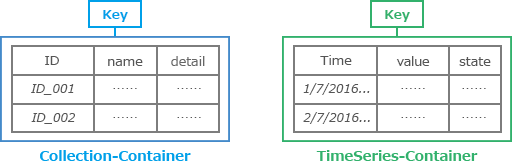
GridDB is tailored for IoT data by using a key-container model of storing and accessing data. In many IoT applications, many devices report data very frequently and have timestamps associated with them. GridDB provides a TimeSeries container that can handle timestamp data that arrive at high rates. TimeSeries containers provide aggregation and sampling functions along with data compression as a way to save storage space.
High Performance
GridDB uses a Memory First, Storage Second approach to accessing data. Frequently accessed data is stored in-memory and preferably within the same block. GridDB’s precise and effective use of multi-threading and CPU allocation reduce the overhead of database operations. Performance is further increased through parallel processing within and across nodes. This allows GridDB to make maximal use of memory and CPU.

GridDB Community Edition
GridDB Community Edition is the open-source version of GridDB. Version 3.0.1 is free and available for download on the GridDB Downloads page along with its various connectors. GridDB Community Edition can be deployed in a public cloud environment and has an AMI available through AWS. GridDB brings pivotal features like:
Open Source and Well Documented
GridDB Community Edition is fully open-source and provides APIs and connectors to several frameworks for developers. GridDB has APIs in C, Java, Python, and Ruby. Developers can use the connectors to YCSB, Apache Spark, Hadoop MapReduce, Kafka, and KairosDB.
Source code for GridDB, its APIs, and its connectors can be viewed on GitHub
Setting Up and Adding Nodes in Community Edition
When using Community Edition, a GridDB cluster can be composed of many nodes. The procedure for adding new nodes is fairly simple and straightforward: simply stop the cluster and rejoin all the nodes (including the new node). Then, login as the gsadm user on all node machines. From there, have each node in the current cluster leave the cluster. Then stop the node.
On each of the old nodes:
$ sudo su - gsadm
$ gs_leavecluster -u username/password
$ gs_stopnode -u username/password
Now that the cluster is stopped, the new node is ready to be added. Simply ensure that the new node has the same cluster definition file (gs_cluster.json) as all the other nodes. From there, start all the nodes and join them into the cluster. Now the GridDB cluster is operating and ready for use with the new nodes.
In this example, we will add a new node at IP address 192.168.0.1 to a cluster named cluster1 which is made up of 3 nodes.
On all the nodes (both old and new), issue:
$ gs_startnode
$ gs_joincluster -c cluster1 -u username/password -n 4 -w
Node entry can also be specified with from another node (as long as all nodes are started with gs_startnode beforehand). In this case, the cluster will not begin operation until all 4 nodes have been joined (-n 4).
We will add the new node by issuing:
$ gs_joincluster -c cluster1 -n 4 -s 192.168.0.1:10040 -u username/admin
Having seen how to add nodes in an already functioning cluster on Community Edition is important because it will provide some context for the next section.
Key Features of GridDB Standard Edition
GridDB Standard Edition is the commercial version of GridDB. GridDB Standard Edition gives software support with maintenance releases, bug fixes, patches, updates, and company support 24/7, 365 days a year. GridDB also provides an AWS AMI. GridDB SE brings in useful utilities like:
Spatial Data Types
Spatial data are data points that can be mapped and stored as points or as topologies in a coordinate space. Spatial data is used heavily in Geographic Information System (GIS) applications and map information systems. Spatial data that captures aspects of location are also quite frequently in IoT applications. Examples of spatial data include geometries like POINT, LINESTRING, POLYGON. Spatial data is represented with GEOMETRY columns in GridDB. Developers can add spatial columns and spatial indexing to their containers. One can also make geometric queries using TQL such as spatial intersections. Developers can also create geometry objects and execute geometric functions using the C and Java APIs of GridDB Standard Edition.

More detailed information on Geometric data can be found on the using geometry values post.
Web Management GUI
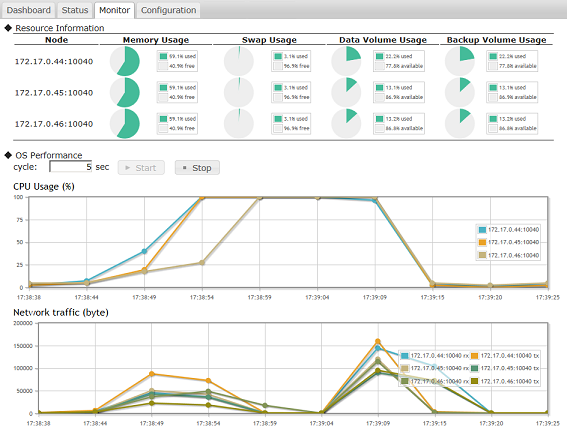
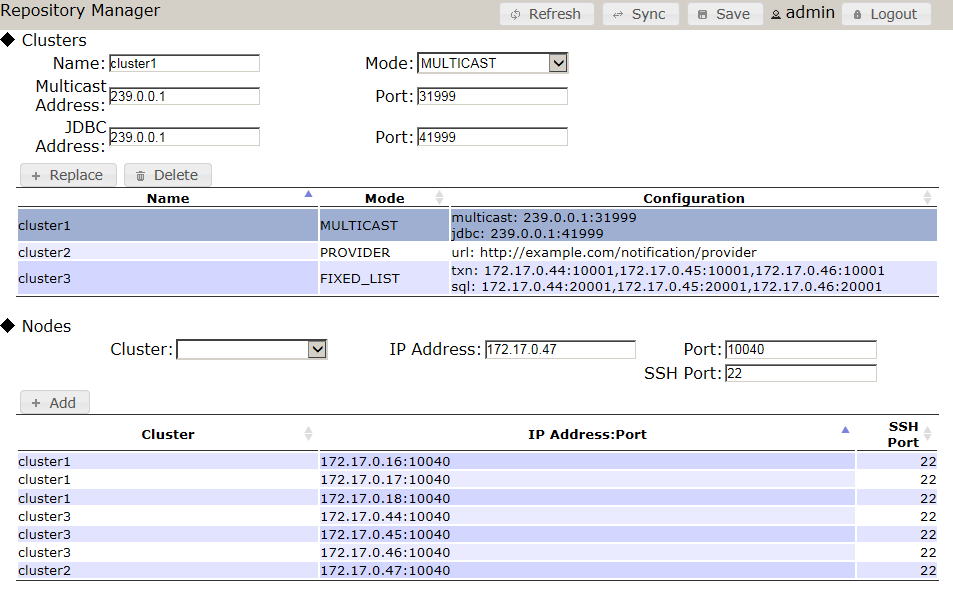
GridDB Standard Edition provides an intuitive, easy-to-use management dashboard application that runs in Apache Tomcat. With the web application, users can see and manage their GridDB clusters and repositories. Users and administrators can also view and manage the configurations, connections, and settings of the nodes with the GridDB cluster, as well as issue and analyze TQL queries. Snapshots can be taken of nodes to view individual nodes and their performances at points in time. Individual containers can be listed and its properties and data can be managed from the dashboard as well. General system information like checkpoint and backup information can also be seen in the GUI application. Errors, logs, and events that have occurred on containers and GridDB clusters are available for listing and analysis through the management GUI are also included.
Cluster Management Shell
GridDB provides a command line interpreter to operate on GridDB. This tool is known as gs_sh that can be accessed from the gsadm user. This command line tool allows a user to manage cluster and data operations in GridDB; clusters can be easily defined and their status and logs can be displayed. Individual nodes can be started and stopped from a cluster in gs_sh as well. GridDB containers and triggers can be listed and displayed. Indexes can be added and dropped from containers at will and TQL operations can be performed on containers through the shell.
The gs_sh can be used in two different modes. The first mode offered is interactive mode where special GridDB-specific commands can be entered like a traditional command-line. The second mode offered is batch-mode which involves the use of a script file in the .gsh format that contain series of subcommands to execute on GridDB.
Online Backup and Online Expansion
Expansion in a database involves increasing its size and capacity. This translates to adding more nodes so that it may scale out with commodity hardware. For most databases, adding more nodes can only be done when the database is offline. GridDB Standard Edition offers the ability for users to expand their database online without having to stop operation and halt services. When adding new nodes to a cluster in Community Edition, all the nodes in the cluster must leave the cluster and be restarted. This can be tedious and costly for a large database with many nodes. In Standard Edition, this step can be skipped altogether.
To add new nodes in GridDB Standard, simply use the gs_appendcluster command. Specify the cluster that you wish to add to as well as the IP address and port of the node machine. For example to add a node with IP address 192.168.0.3 to a cluster named largeCluster you would issue:
$ sudo su - gsadm
$ gs_appendcluster --cluster largeCluster 192.168.0.3:10040 -u username/password
Standard Edition also features online backup so periodic backups can be executed on a cluster as a safeguard against data corruption or application malfunctions.
Differential Backup Function

GridDB Standard Edition adds a new backup type known as differential or incremental backup. In incremental backup, the cluster database is stored in node units in a backup directory. For future backups, only the differences between the update block and the last backup get backed up. Updated data blocks are only backed up once a specified baseline is executed. Differential backup can also be done online.
Export / Import Tools for Migration
Standard Edition provides export and import tools so GridDB nodes can recover from local damages and containers can be migrated, even from an RDB database. The export function of GridDB allows developers to export whole clusters, individual databases and containers, user rights, and row sets resulting from search queries. Exported data can be stored either in csv or binary formats. Individual or multiple containers can be exported into single files known as container data files as well.
The import function can be used to migrate a relational database into GridDB. Just like the export function, individual containers, databases, and clusters can be imported in GridDB. The way that the relational database translates to a GridDB database can be specified with a resource definition, an RDB collection function, a mapping function, and a GridDB registration function.

Imports and export processes can be sped up by being executed in parallel. Details and instructions for using the export and import functionality can be found in this section of the documentation.
Setting Up Nodes in Standard Edition
In GridDB Standard Edition, nodes can be added using either the gsadm user from the command-line just like in Community Edition or by using the gs_sh shell. Node variables can be created with the IP and Port numbers of the node machines using gs_sh. Cluster variables can be created with many node variables attached to it. The cluster can then be started, joined, or have nodes added to it.
// Access gsadm user and gs_sh shell
$ sudo su - gsadm
$ gs_sh
// Define node
gs> setnode node0 192.168.0.1 10000
// Define cluster and attach cluster to it
gs> setcluster cluster0 defaultCluster 239.0.0.1 31999 $node0
gs> joincluster $cluster0 $node0
// Additional Nodes can be added using 'appendcluster'
gs> setnode node2 192.168.0.2 10000
gs> appendcluster $cluster0 $node2
Conclusion
GridDB provides the best options for your backend database needs regardless of the scale of your application. GridDB Community Edition is well suited for smaller scale IoT applications while giving the benefit of a reliable, high performance database and still remaining open-source. GridDB Standard Edition is tailor-made for larger commercial applications with its additional tools and support for cluster management.
If you have any questions about the blog, please create a Stack Overflow post here https://stackoverflow.com/questions/ask?tags=griddb .
Make sure that you use the “griddb” tag so our engineers can quickly reply to your questions.